In today’s digital age, tablet PCs have become essential tools for work, education, and entertainment. However, like any electronic device, they are prone to various technical issues. Understanding how to identify and resolve common problems can save time, money, and frustration. This article outlines typical tablet malfunctions and provides practical solutions to help users get their devices back on track.
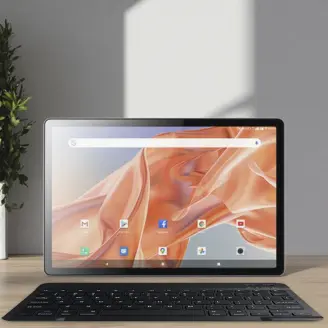
- Tablet Won’t Turn OnOne of the most common issues is a tablet that fails to power up. First, ensure the battery isn’t completely drained—connect the device to a charger for at least 15–30 minutes. Try using a different charging cable or adapter to rule out accessory issues. If the tablet still doesn’t respond, perform a hard reset by pressing and holding the power button (and volume down button on some models) for 10–15 seconds.
- Slow Performance or FreezingOver time, tablets may become sluggish due to too many background apps, insufficient storage, or outdated software. Close unused apps, clear cache data, and uninstall programs you no longer need. Make sure your operating system and apps are up to date. Restarting the device regularly can also improve performance.
- Unresponsive TouchscreenA non-responsive touchscreen can becaused by screen protectors, dirt, or software glitches. Clean the screen with a soft, lint-free cloth. Remove any screen protector to check if it’s interfering. If the issue persists, restart the tablet. In some cases, a software update or factory reset (after backing up data) may be necessary.
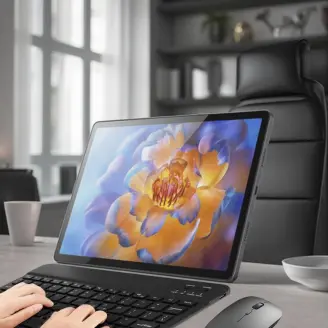
- Wi-Fi Connectivity ProblemsIf your tablet can’t connect to Wi-Fi, start by toggling the Wi-Fi setting off and on. Forget the network and reconnect by entering the password again. Restart both the tablet and the router. Check if other devices can connect to the same network—this helps determine whether the issue lies with the tablet or the network itself.
- Battery Drains QuicklyExcessive battery consumption may result from bright screen settings, background apps, or aging batteries. Lower screen brightness, enable battery-saving mode, and close apps running in the background. Check battery usage statistics in settings to identify power-hungry apps. If the battery is old, consider replacing it.
- Apps Crashing or Not OpeningCorrupted app data or insufficient storage often causes apps to crash. Try clearing the app’s cache or data through the settings menu. Uninstall and reinstall the app if needed. Ensure your tablet has enough free storage space and that the app is compatible with your device’s operating system.
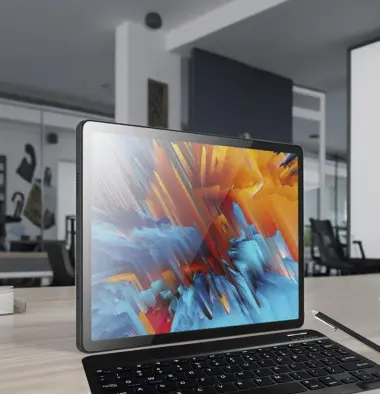
- No Sound or Poor Audio QualityCheck if the device is on mute or if volume is turned down. Inspect the speaker grill for dust or blockages. Test audio with different apps and headphones. If sound works through headphones but not speakers, the issue may be hardware-related. Restart the device or update the audio drivers if possible.
Preventive Tips:
- Regularly update your tablet’s operating system and apps.
- Avoid installing apps from untrusted sources.
- Use a protective case and screen protector.
- Back up important data frequently.
By following these troubleshooting steps, most common tablet issues can be resolved without professional help. However, if problems persist, contact the manufacturer’s support team or visit an authorized service center.
Post time: Nov-13-2025