
The Ultimate Guide to the Modern Computer Monitor
In the fast-paced world of electronics manufacturing here in Shenzhen, I see thousands of screens every day. From the 7-inch panels we put into rugged tablets to the expansive displays used in high-end kiosks, the computer monitor is the window to our digital soul. Whether you are sourcing hardware for a school district in the USA or setting up a corporate office, understanding the monitor is crucial. It is not just a sheet of glass; it is a complex intersection of physics and engineering.
A monitor determines how we see our work, our games, and our data. As an output device, it translates binary code into the colorful images we understand. In this guide, we will break down the evolution of display technology, from the bulky tubes of the past to the sleek flat panel units of 2026. If you are looking to buy the best computer monitor for your business or resale, you need to know what happens inside the plastic casing.
What Exactly Is a Monitor Display?
At its core, a monitor is an output device that displays information in pictorial or text form. A monitor comprises the visual display, circuitry, casing, and power supply. In the early days, we called this a VDU (Visual Display Unit), but today we simply call it a monitor. The computer monitor connects to the graphics adapter or video card inside the computer and interprets the signals sent by the computer's processor.
The monitor display is the final link in the chain of computing. You can have the fastest processor in the world, but if your monitor has poor color accuracy or a low refresh rate, the experience is ruined. A modern monitor usually consists of a thin-film-transistor liquid-crystal display (TFT-LCD) with LED backlighting. This display unit is lightweight, energy-efficient, and capable of sharp resolutions.
For B2B buyers like my friend James in the US, the monitor is often the first thing end-users complain about if it is low quality. That is why at Gisentec, we prioritize the display quality in our devices, such as the 10.1 Inch Rugged Tablet GS10N, which needs to be readable even in bright sunlight.
How Have Different Types of Computer Monitors Evolved?
The history of the computer monitor is a journey from analog to digital. There are different types of computer monitors that have dominated different eras. The most iconic of the past was the CRT (cathode ray tube). These CRT monitors were heavy, bulky, and took up half the desk. They used CRT technology, which involved an electron gun firing streams of electrons at a phosphorescent screen.
Then came the revolution of LCDs (liquid crystal displays). LCD technology changed everything. It allowed for the creation of a flat panel that was light and consumed a fraction of the power. This shift enabled the creation of portable devices such as laptops. Following standard LCD monitors, we saw the rise of the LED monitor. An LED monitor is essentially an LCD but uses light-emitting diodes for backlighting instead of the older Cold Cathode Fluorescent Lamps (CCFL).
Today, we also see OLED displays entering the market, which offer even better contrast ratio levels because each pixel emits its own light. However, for most bulk education and business orders, the LED monitor remains the standard due to its balance of cost and performance.
Why Do We Say the Monitor is an Output Device?
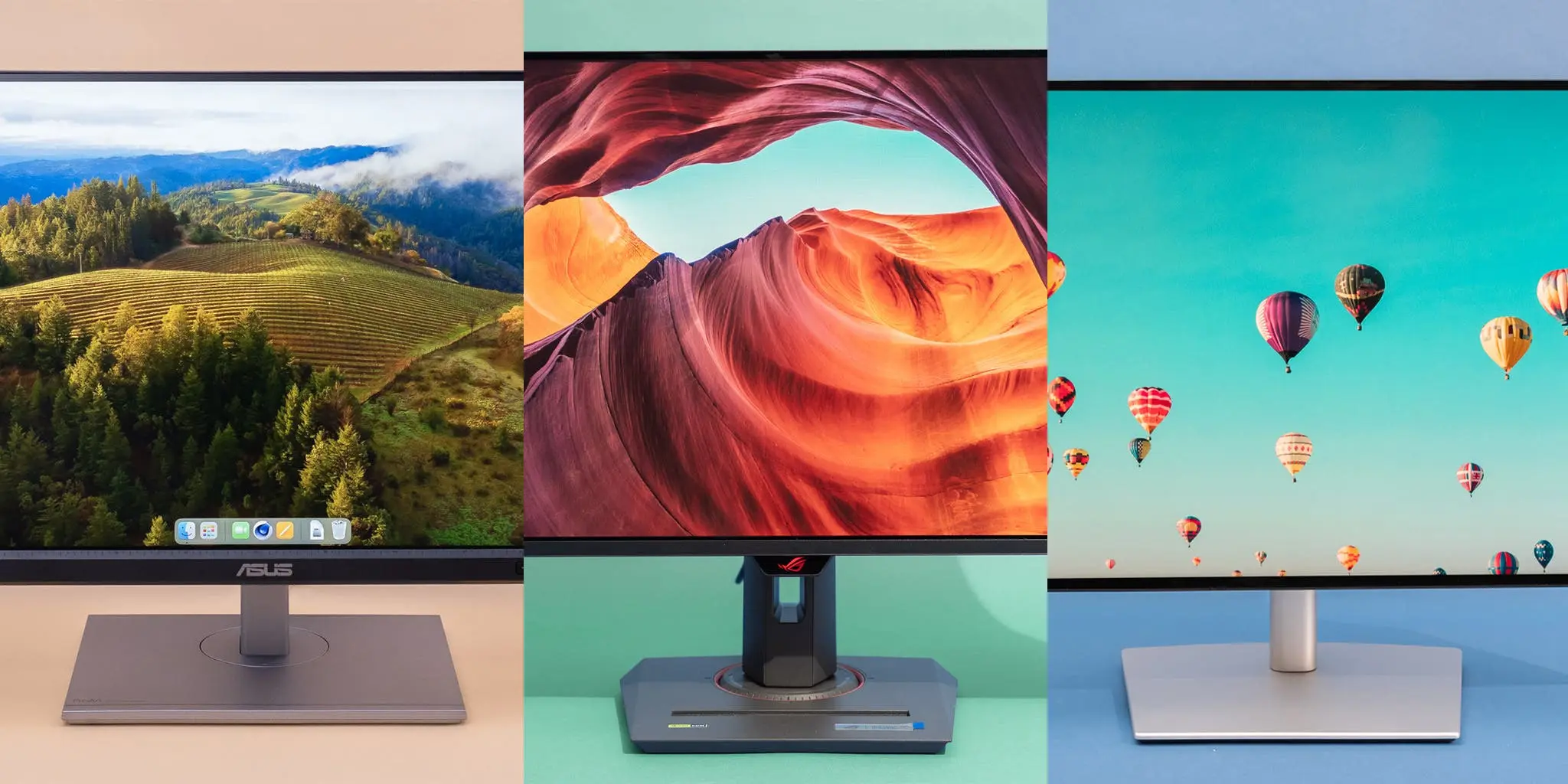
It might seem obvious, but it is important to define why the monitor is an output device. In computing, input devices (like keyboards and mice) send data to the system. The monitor takes that processed data and pushes it out to the user. The computer monitor is an output interface that bridges the gap between machine language and human vision.
The monitor display shows the result of the computer's calculations. Whether it is a spreadsheet, a graphic, or high-definition video, the monitor renders it. Without this output device, interaction is impossible. Monitors enable interaction by providing visual feedback. When you move your mouse, the monitor updates the cursor's position instantly.
In our factory, we ensure that every monitor output is calibrated. If the monitor fails to display the correct colors or cuts off the edge of the image, it fails our quality control. A computer monitor also serves as a status indicator for the health of the PC. If the monitor stays black, you know something is wrong inside the computer.
LCD vs. CRT: What Happened to the Cathode Ray Tube?
CRT technology was the king of the hill for decades. A cathode-ray tube works by manipulating electron beams in a vacuum. While CRT monitors actually had excellent color depth and response time, they had major downsides. They were huge, heavy, and emitted a lot of heat. The cathode ray tube required high voltage to operate.
LCD technology replaced CRT because of efficiency. Liquid crystal molecules do not emit light; they block it. By applying an electric current, the liquid crystal untwists to let light pass through. Advantages of LCD include lower energy consumption, zero geometric distortion (the image is perfectly flat), and a slim profile.
Today, you will rarely find a CRT unless it is for retro gaming. The flat-panel monitors based on LCD and LED monitor tech are superior in almost every practical way. They allow for the sleek designs you see in our 15.6 Inch Laptop X7S-6, which would be impossible with cathode ray tube tech.
Understanding the Pixel: The Building Block of the Graphic
Every image on a monitor is made of dots called pixels. The word pixel comes from "picture element." The monitor arranges these pixels in a grid. The number of pixels displayed horizontally and vertically determines the resolution.
For example, a 1080p gaming setup uses a resolution of 1920x1080. That is over 2 million pixels! A 4K monitor packs even more. The pixel density, measured in pixels per inch (PPI) or DPI (dots per inch), dictates how sharp the image looks. A higher pixel density means you cannot see the individual dots with the naked eye, resulting in a sharper image.
The dot pitch is the distance between two pixels of the same color. A smaller dot pitch means a sharper image. When we manufacture tablets, we look for high PPI because users hold the device close to their faces. The monitor must display text clearly so it doesn't cause eye strain.
How Does Monitor Performance Affect the Experience?
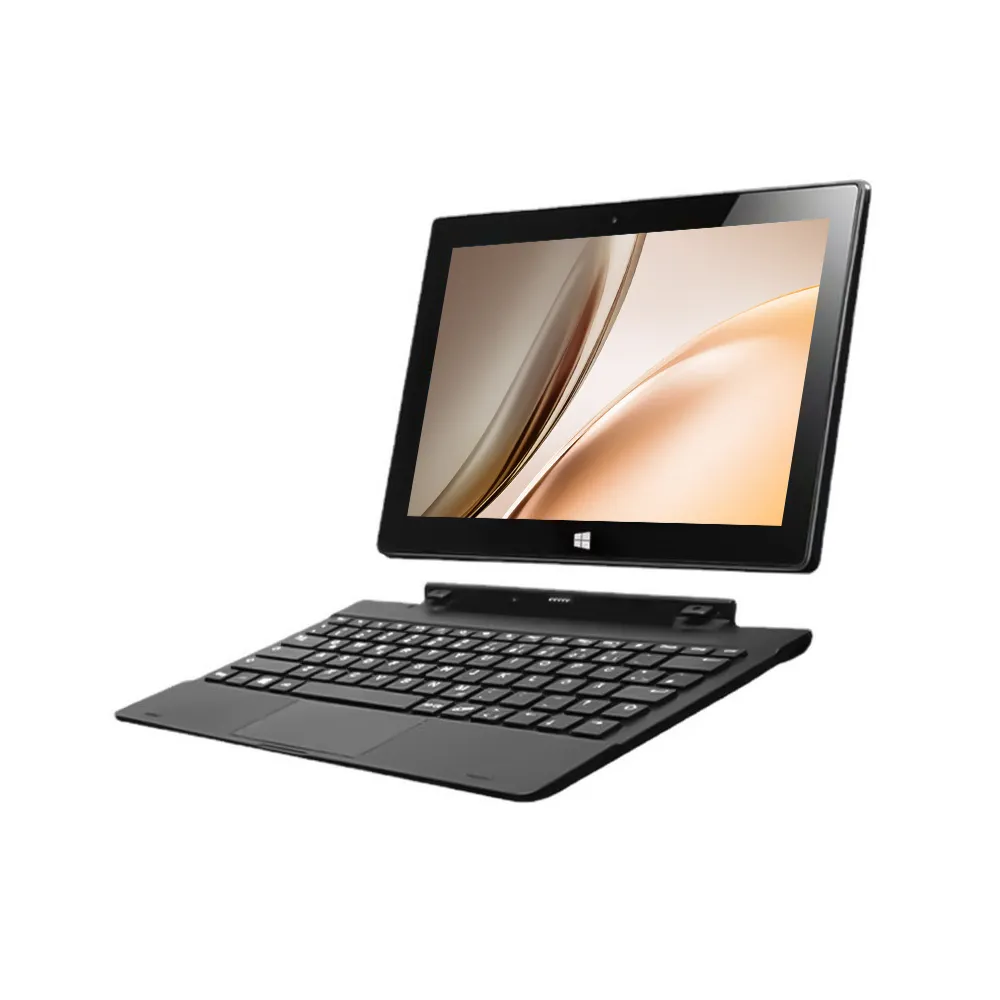
Monitor performance is judged by several specs. First is the refresh rate. This is how many times per second the monitor updates the image. A standard office monitor uses 60Hz. Higher refresh rates like 120Hz or 144Hz are preferred for gaming because they make motion look smoother.
Response time is another factor. This is how fast a pixel can change from black to white or gray to gray. A slow response time causes "ghosting," where a moving object leaves a trail. For high-definition video and fast-paced work, a low response time (under 5ms) is ideal.
Contrast ratio measures the difference between the darkest black and the brightest white the monitor can produce. A higher ratio means better image quality. We also test the viewing angle. IPS (In-Plane Switching) LCD panels are famous for having a wide viewing angle, meaning the colors don't look weird if you look at the monitor from the side.
The Role of Flat Panel and LED Monitor Technology
The term flat panel covers mostly LCD and LED monitor types. The shift to flat panel allowed monitors to grow in size without taking over the room. An active matrix display, used in almost every modern computer screen, controls each pixel individually.
An LED monitor is actually a type of LCD. The difference is the light source. Older LCD computer monitors used fluorescent tubes. A modern LED monitor uses a light-emitting diode array. This allows for thinner screens and better dimming capabilities.
Some high-end monitors use "local dimming" where groups of LEDs turn off to create deeper blacks. This technology is vital for graphic designers and video editors who need precise color representation. Our 16 Inch Laptop DS160N95 utilizes these advanced flat-panel monitors to ensure that business presentations look crisp and professional.
Connectivity: Linking the Graphics Adapter to the Screen
A monitor is useless without a connection. The graphics adapter (or GPU) creates the image, but the cable carries it. In the past, we used VGA (Video Graphics Array), an analog signal. VGA cables were notorious for signal degradation.
Now, we use digital connections like DisplayPort, HDMI, and USB-C. DisplayPort and HDMI can carry audio and video data simultaneously. USB-C is becoming the standard for devices such as laptops because it can transmit video, data, and power all through one cable.
When you plug a cable into the monitor, the graphics adapter negotiates with the display. They agree on the resolution and refresh rate. If you try to force a monitor to display a resolution higher than its maximum number of pixels, it will stay black.
How Monitors Enable Interaction and Productivity
Monitors enable interaction not just by showing us things, but by letting us manipulate them. Touchscreen monitors have turned the display into an input device as well. This is common in kiosks, POS systems, and tablets.
The monitor display is where we organize our lives. We have multiple windows open on the desktop. The aspect ratio (the width vs. height) of the monitor affects how much we can see. The old square 4:3 monitors are gone; wide 16:9 and even ultra-wide 21:9 monitors are now the norm.
A good monitor provides a comfortable workspace. Features like blue light filters help reduce eye strain during long workdays. Whether it is a standalone desktop unit or a built-in laptop screen, the quality of the visual display directly impacts productivity.
Choosing the Right Display Technology for Your Business
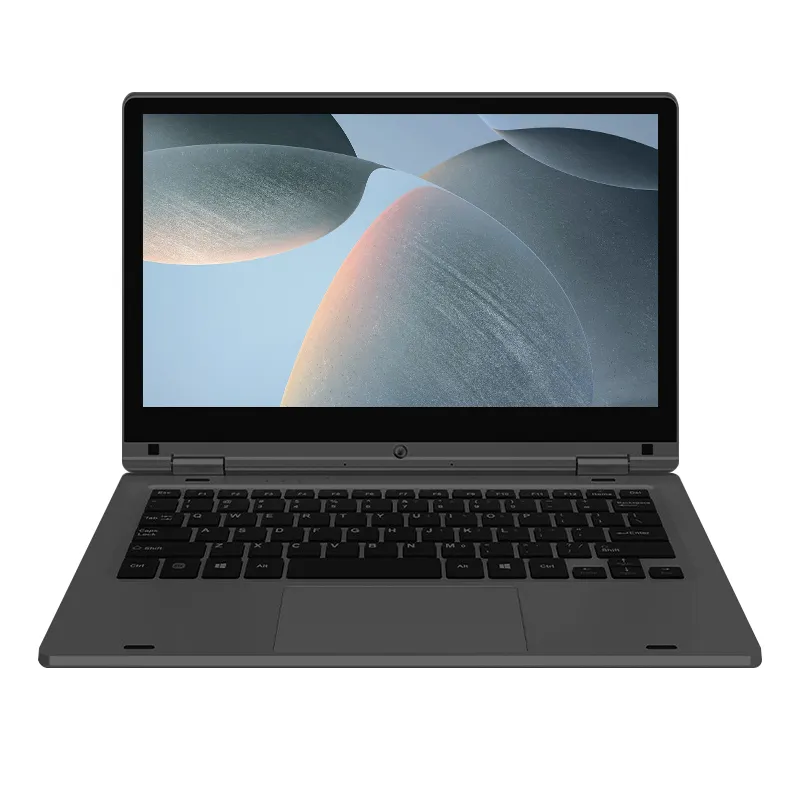
When I talk to buyers like James, I ask them what the monitor will be used to display. If it is for graphic design, they need an Eizo-level or high-end IPS panel with perfect color accuracy. If it is for general office work, a standard LED monitor with a standard refresh rate is sufficient.
There are many types of computer monitors available. TN (Twisted Nematic) panels are cheap and fast but have poor viewing angles. VA (Vertical Alignment) panels have great contrast. IPS panels offer the best colors and angles.
Understanding these types of monitors helps in negotiating prices. You don't want to pay for a 240Hz gaming monitor if it's just for entering data into a spreadsheet. However, you also don't want a cheap, dim monitor for a medical tablet that needs to be read under bright hospital lights.
The Future: From LCDs to Beyond
The monitor industry never sleeps. We are seeing screens that fold, roll, and become transparent. While LCD technology is mature, OLED and Micro-LED are pushing the boundaries of image quality.
However, for the bulk of the B2B market in 2026, the reliable, energy-efficient LED monitor remains the workhorse. It is the output device that powers the global economy. Whether it is displayed on a huge video wall or a small handheld 10.1 Inch Tablet GS101, the technology behind the monitor is what makes digital life possible.
We test our monitors rigorously. We check for dead pixels—a monitor with a dead pixel is a defect. We check uniformity to ensure the front of the screen is evenly lit. Quality control is key because once that monitor lands on a desk in Texas or a classroom in London, it needs to work perfectly for years.
Summary
The computer monitor is more than just a TV for your PC. It is a precise output device that has evolved from the bulky CRT monitors of the past to the ultra-thin flat-panel monitors of today. Understanding terms like pixel, refresh rate, LCD, and LED monitor is essential for making smart purchasing decisions.
Key Takeaways
- Monitor is an Output Device: It translates computer signals into visual information for the user.
- Technology Shift: The market has moved from CRT technology (cathode ray tube) to LCD (liquid crystal display) and LED monitor tech.
- Resolution Matters: The number of pixels determines sharpness. Higher pixel density means a sharper image.
- Performance Metrics: Look for refresh rate, response time, and contrast ratio to judge monitor performance.
- Connectivity: Modern monitors use HDMI, DisplayPort, and USB-C to connect to the graphics adapter.
- Variety: There are many types of computer monitors available, including IPS, VA, and TN panels, suited for different tasks.
- Interaction: Touchscreen monitors enable interaction, bridging the gap between input and output.
- Flat Panels: Flat panel designs save space and offer lower energy consumption compared to older screens.
Post time: Feb-09-2026